Understanding the Interface
Understanding the Main Screen
Click the Honest AI Shield icon in your toolbar to open the popup. Here is what you will see:
1. Top Bar

- Logo - Branding for Honest AI Shield
- Mode Badge - shows your current plan: FREE, TRIAL, PREMIUM, or BUSINESS
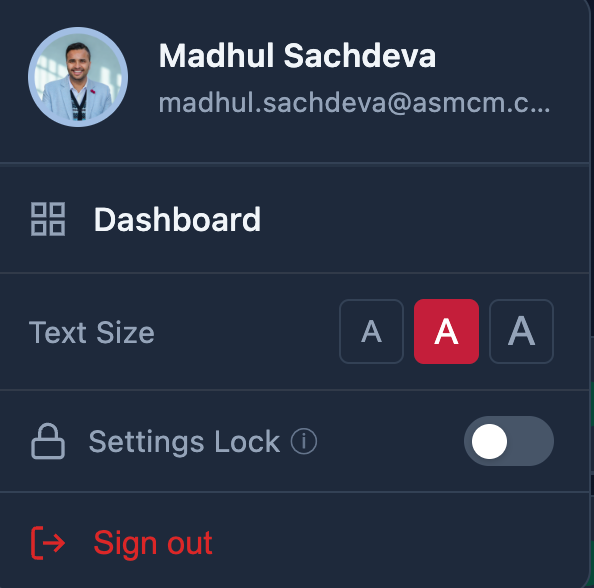
- User Profile - opens account menu (sign in/out, text size, settings lock, dashboard)
- Theme toggle - switches between light and dark mode
2. Bottom Navigation Tabs
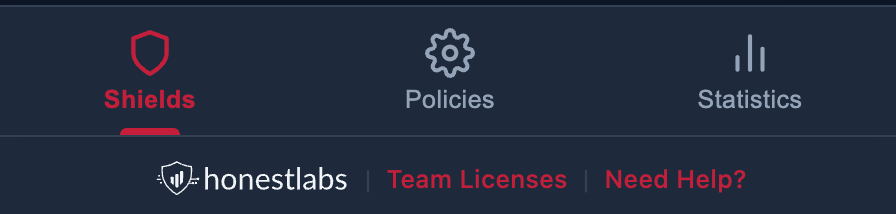
The popup has three tabs along the bottom:
| Tab | What it does |
|---|---|
| Shields | Turn protection features on and off |
| Policies | Configure granular protection settings |
| Statistics | See how many threats have been detected and blocked |
3. Shield Status Indicator
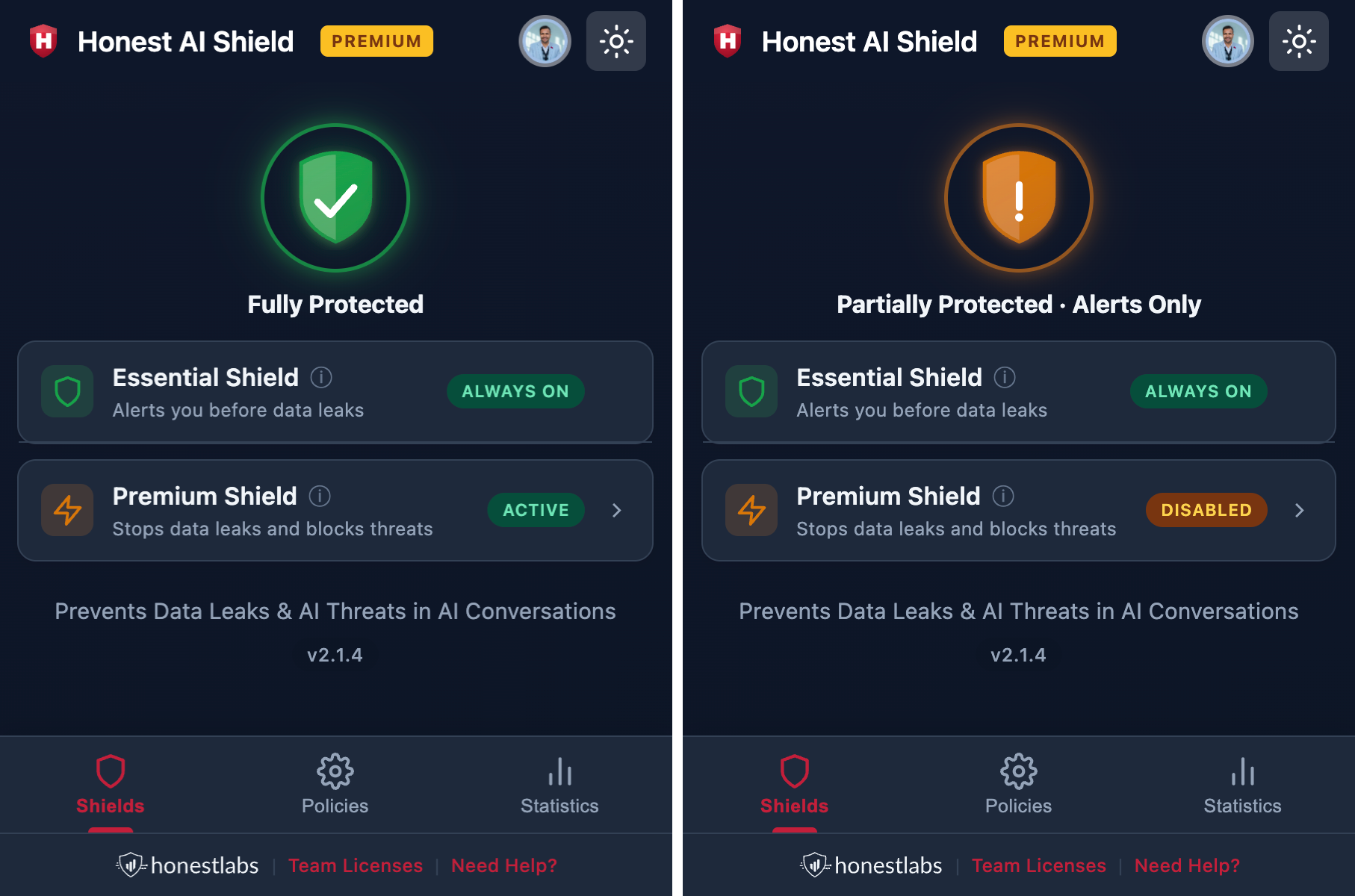
At the top of the Shields tab, you will see a shield icon with a coloured glow:
| Colour | Meaning |
|---|---|
| Green (checkmark) | Fully protected - all shields active |
| Amber (exclamation mark) | Partially protected - some shields are off |
Layers of Protection
Honest AI Shield has two layers of protection.
1. Essential Shield (Always On)
The Essential Shield that is always on, and give user minimum baseline protection by alerting user of sentitive information identified in their messages. This runs automatically for all users, including free accounts. It scans your messages locally (on your device) before they are sent to the AI chatbot.
What it catches:
- Sensitive keywords you have defined
- Personal information patterns (emails, credit cards, etc.)
You cannot turn this off - it is always watching to keep you safe. You can configure which keywords it watches for in the Policies tab.
2. Premium Shield - (Subscription Required)
The Premium Shield gives user advanced protection that goes beyond the Essential Shield. It offers granular control over what gets shared with AI.
Premium features include:
- Data Loss Prevention (DLP) with auto-redaction & rehydration
- AI Response Moderation (scans what the AI says back to you)
- Profanity Removal.
- Block Document Sharing
- Block Screenshot Sharing