Installation and First-Time Setup
This guide covers how to install, set up, and use Honest AI Shield to protect your conversations with AI chatbots like ChatGPT and Claude, with support for more providers coming soon.
Installation
From the Chrome Web Store
- Open Google Chrome
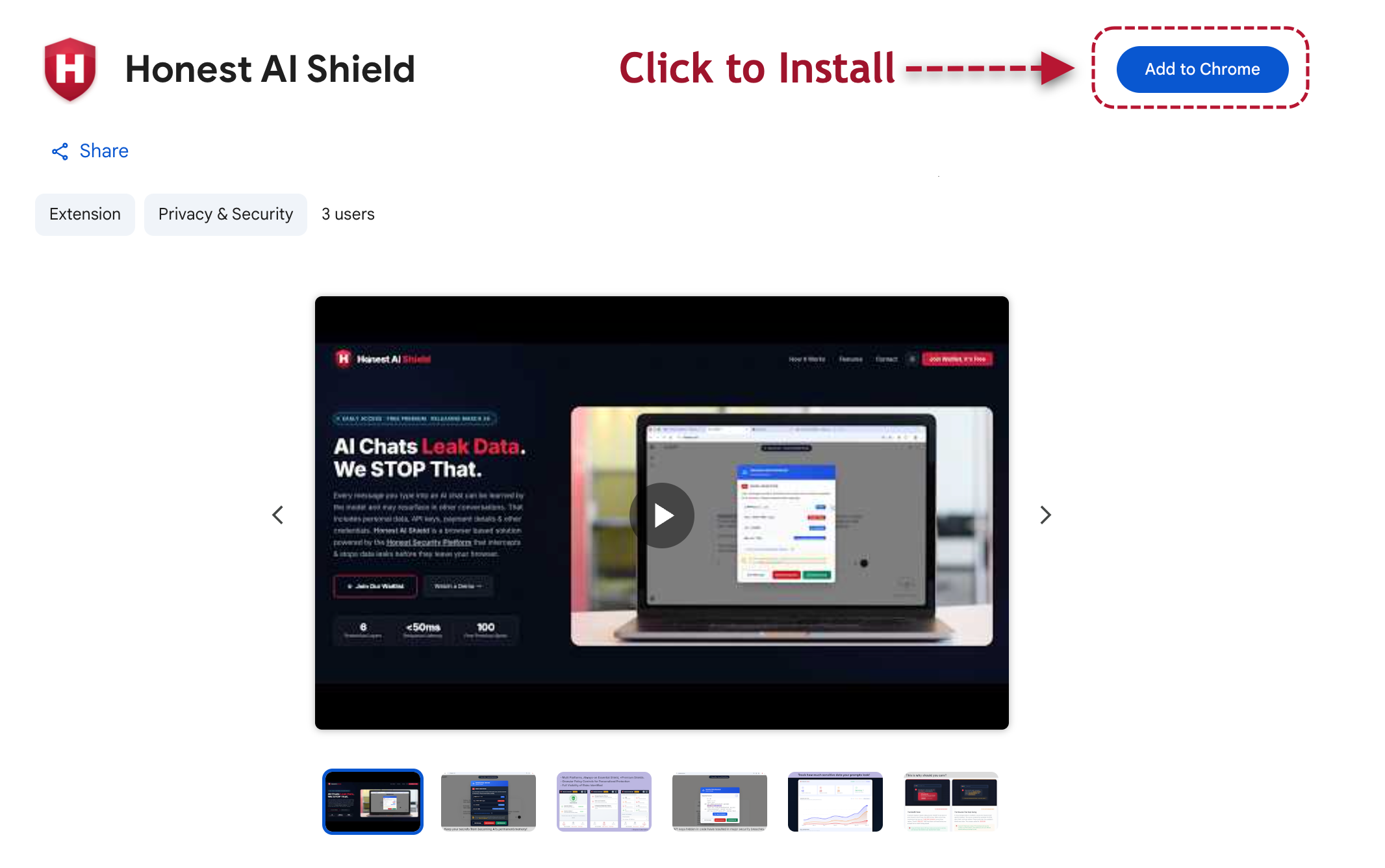
- Go to the Honest AI Shield listing on the Chrome Web Store
- Click "Add to Chrome"
- A pop-up will ask you to confirm - click "Add Extension"
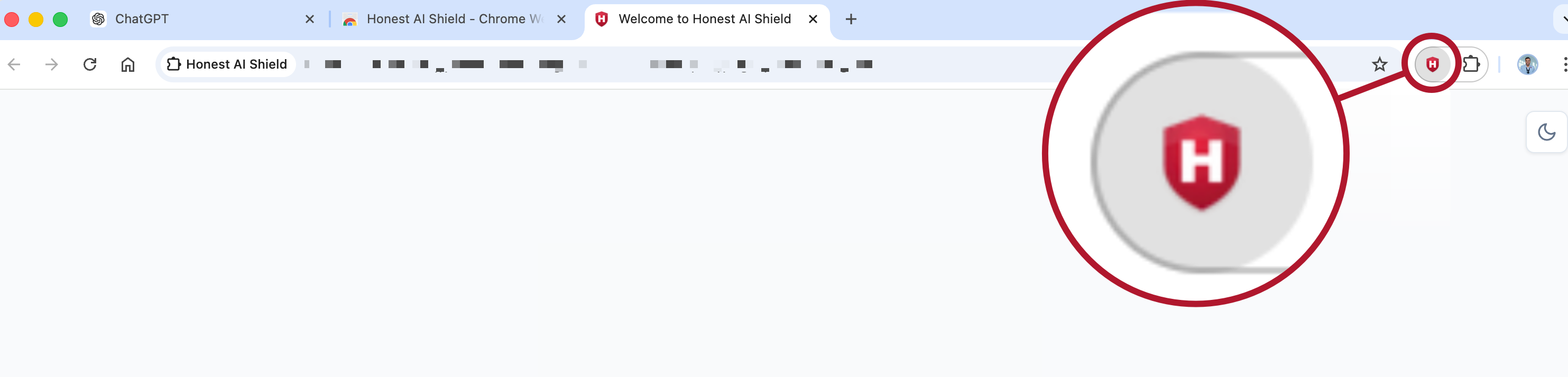
- You will see the Honest AI Shield icon (a red shield with an "H") appear in your browser toolbar.
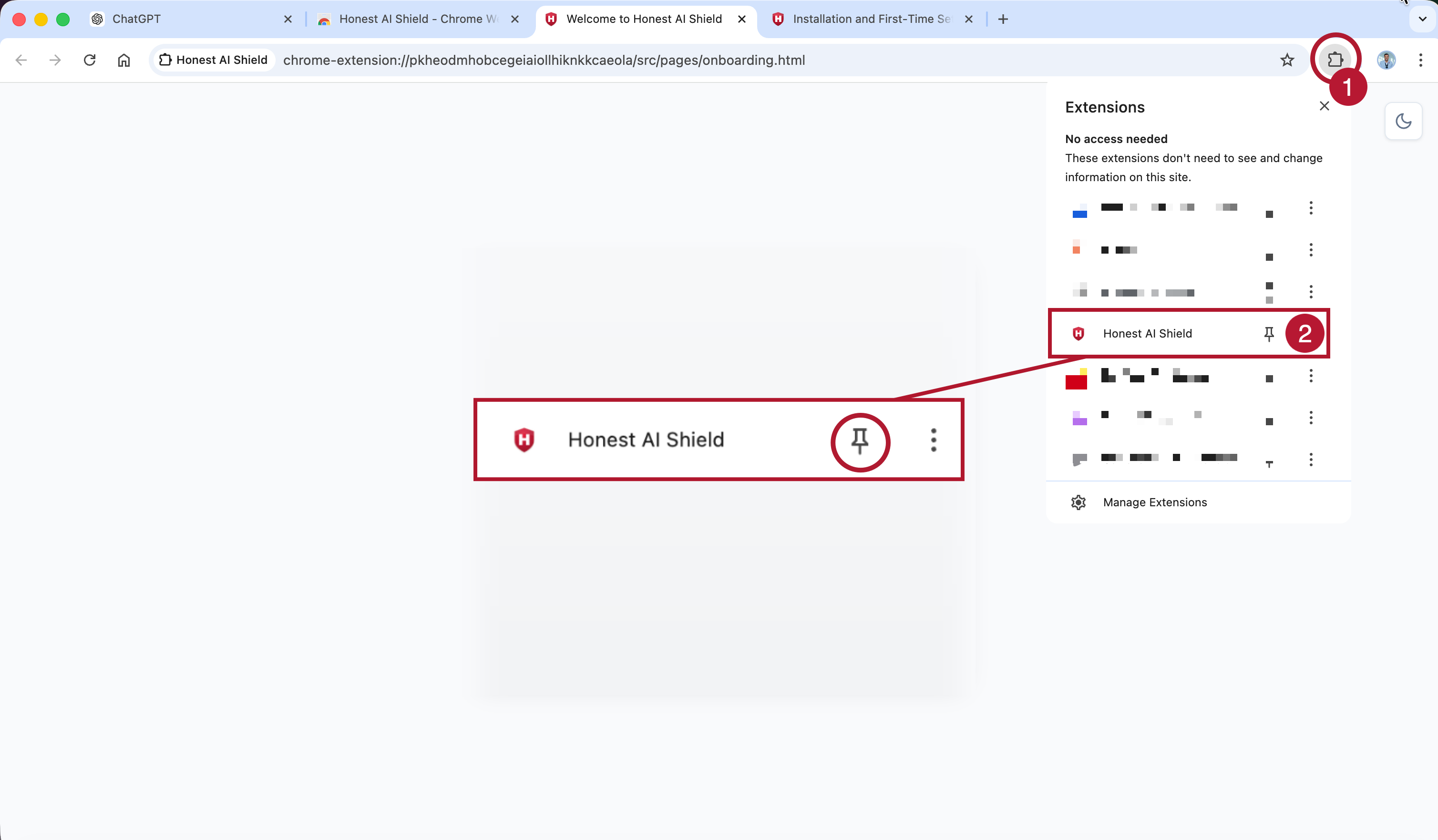
- If you don't see the icon, click the puzzle-piece icon in the toolbar and pin Honest AI Shield.
Step 1 - Add to Chrome ➜ Use this link to install from the Chrome Web Store
Step 2 - Look for the Honest AI Shield icon in your browser.
Step 3 - Pin the extension to your toolbar.
First-Time Setup
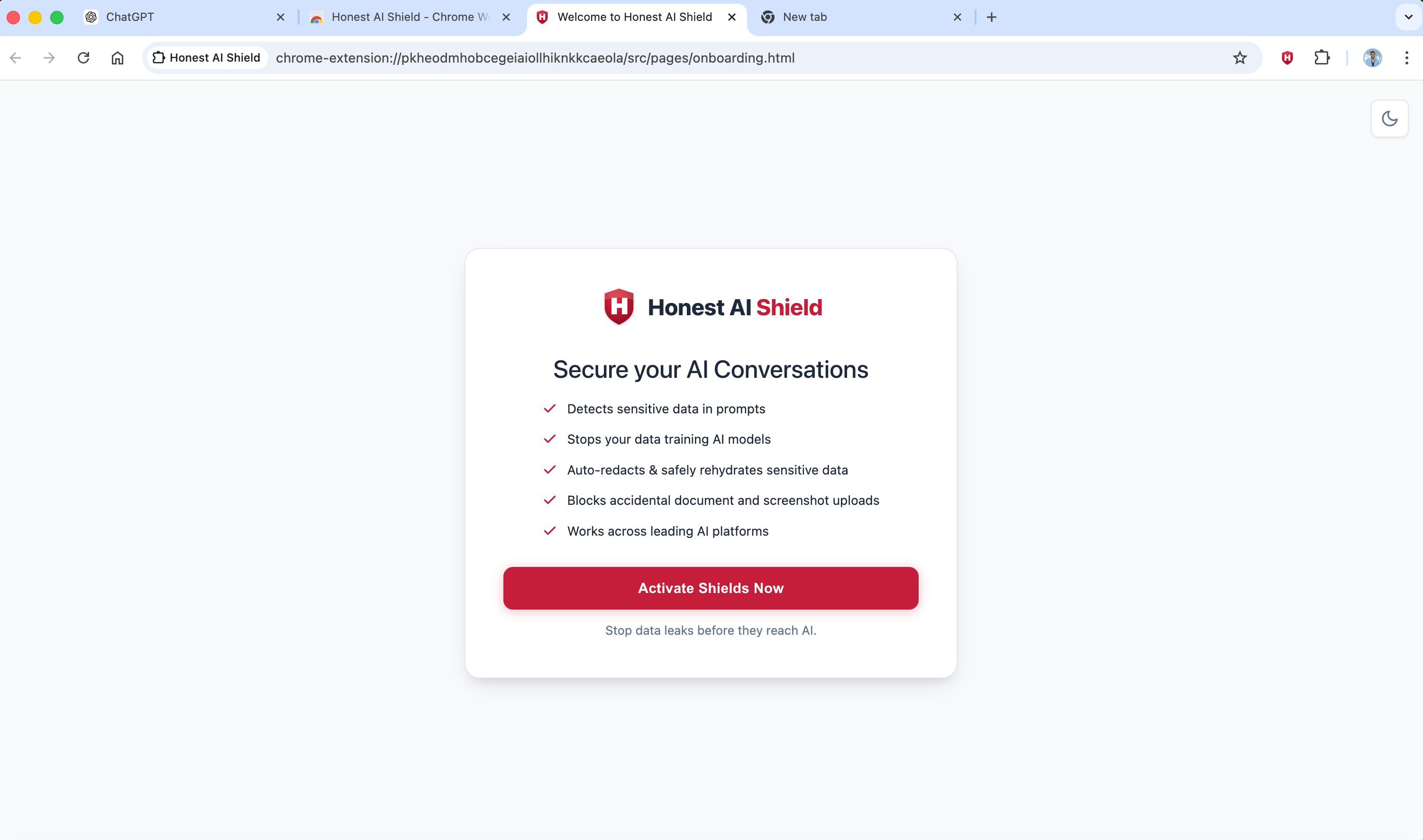
After installation, Honest AI Shield opens an activation screen automatically.
Step 1 - Activate your shields
You will see a welcome screen with the message "Secure your AI Conversations". Click the "Activate Shields Now" button.
Step 2 - Sign in
You will be taken to the Honest AI Shield sign-in page. Create an account or sign in with your existing credentials.
Once signed in, you will see a confirmation: "You're protected."
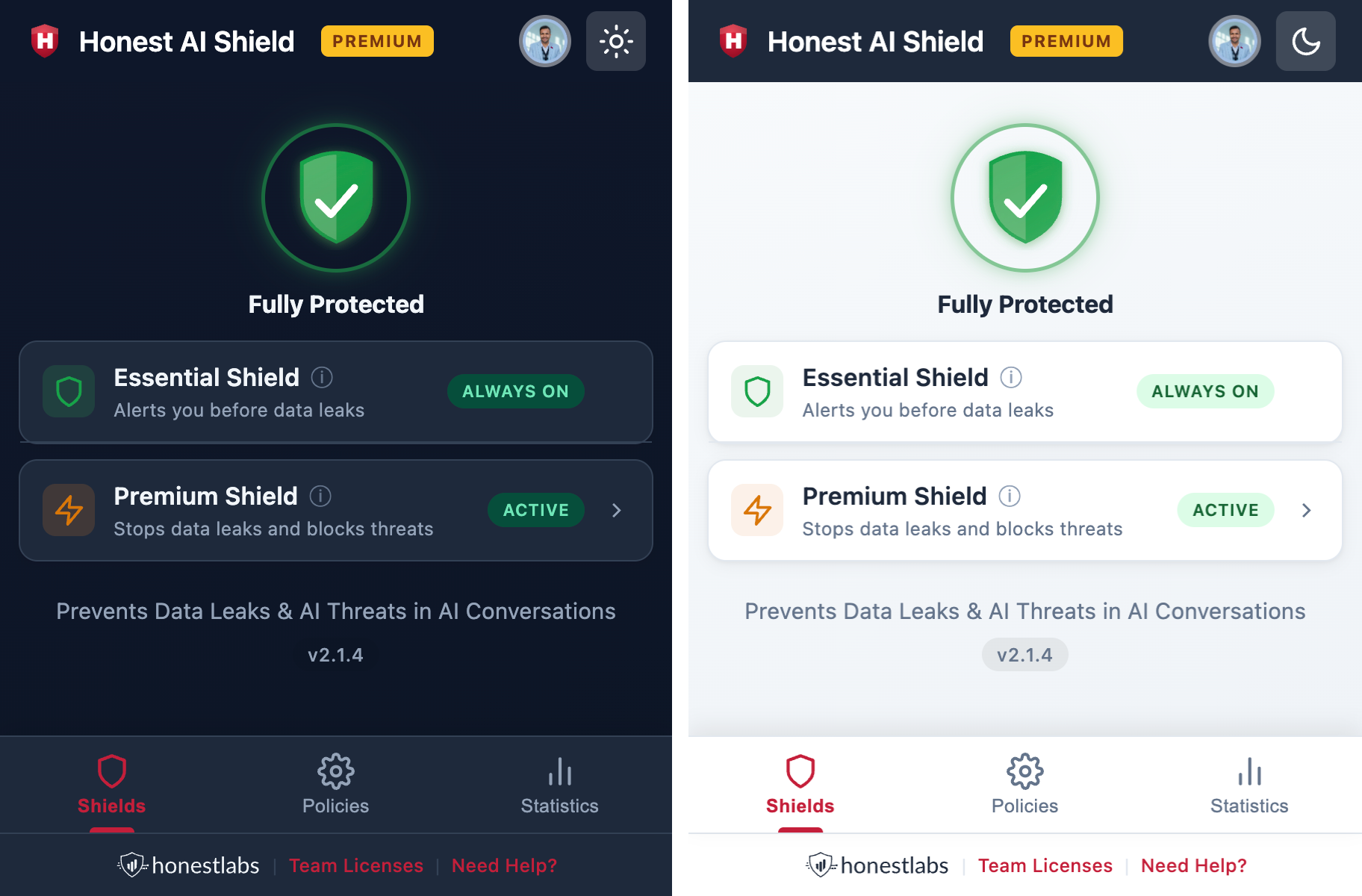
Step 3 - Start using
You now have two options:
- Open Settings - takes you to the extension popup to customise your protection
- Start Using - head straight to ChatGPT or Claude and start chatting with protection active
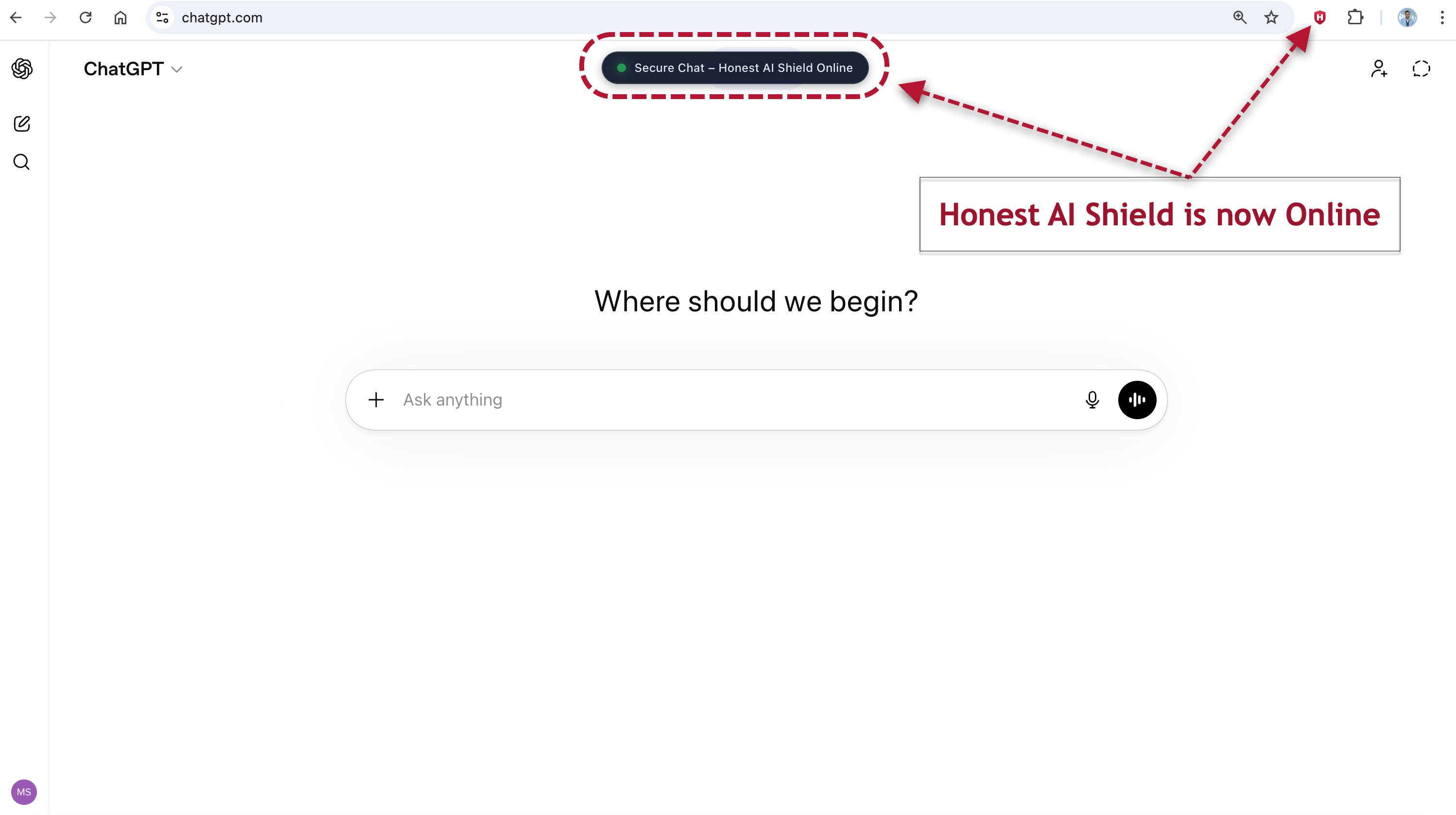
The Essential Shield is always on and active immediately after sign-in. No extra configuration needed. It will alert you if it detects sensitive data in your messages. Premium Shield requires a subscription.